Most OnlyFans creators answer their DMs from a phone, on the sofa, between everything else. Most AI tools for creators assume you're at a desk with a browser extension. This guide closes that gap: how to get three AI-drafted replies in your own voice, inside any fan chat, with one gesture on your iPhone - and nothing auto-sent.
It uses Naughtii on iPhone, which runs on the Shortcuts app that's already on every iPhone. There's nothing to install from the App Store, no password to paste, and the whole setup takes about a minute once your AI profile exists.
What you'll end up with
Open a fan's chat in OnlyFans. Double-tap the back of your phone. Choose what the reply should do - chat, flirt, sell, or say no. Three replies in your voice appear. Tap one, paste it, send.
No screenshot is saved to your camera roll, because Back Tap reads the screen directly. And every message your fans receive was pasted and sent by you.
Before you start: your AI profile
Naughtii drafts replies from a profile you build once at naughtii.com: your persona, niche, tone of voice, hard boundaries, price menu, and a few real messages in your voice. It powers your iPhone, the Chrome extension, and every writing tool in the dashboard. If you haven't built it yet, do that first - five minutes, and it's the difference between "AI replies" and replies that sound like you.
Step 1 - Add Naughtii to your iPhone
On your iPhone, open Studio → Install on naughtii.com and tap Add to iPhone. The Shortcuts app opens and shows you a shortcut called Naughtii Reply. Tap Add Shortcut, then come back to naughtii.com.
That's the only "install" there is.
Step 2 - Tap Connect
Back on the same page, tap Connect. The shortcut runs once and links itself to your account - there's no password to type or paste anywhere.
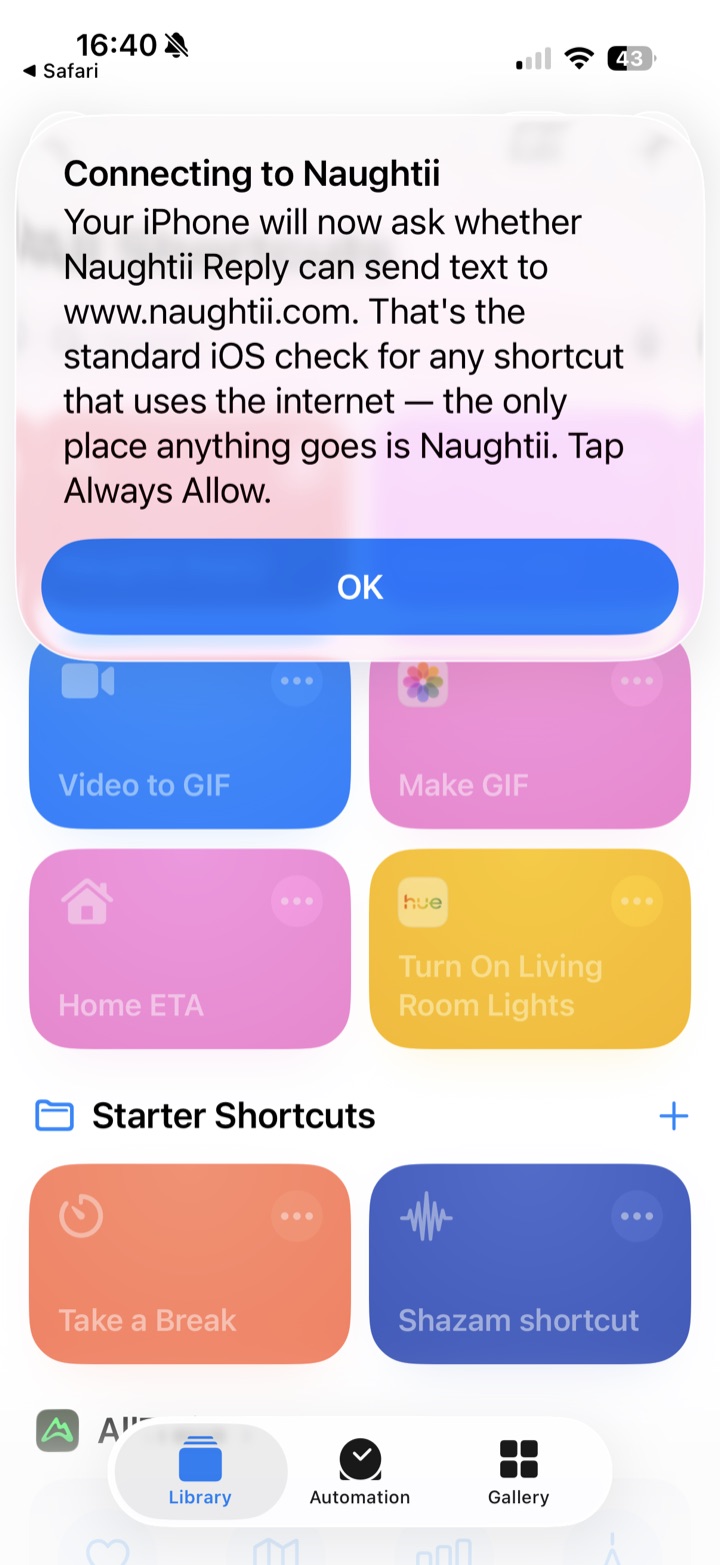
Just before it connects, iOS will ask whether Naughtii Reply can send text to www.naughtii.com. This is the standard iOS check for any shortcut that uses the internet; the wording about "other websites" is Apple's boilerplate and not something the shortcut does. Tap Always Allow so it never asks again.
Step 3 - Set up Back Tap (the step that matters)
When the shortcut shows Connected ✓, it offers to set up Back Tap right away. Choose Open Settings now.
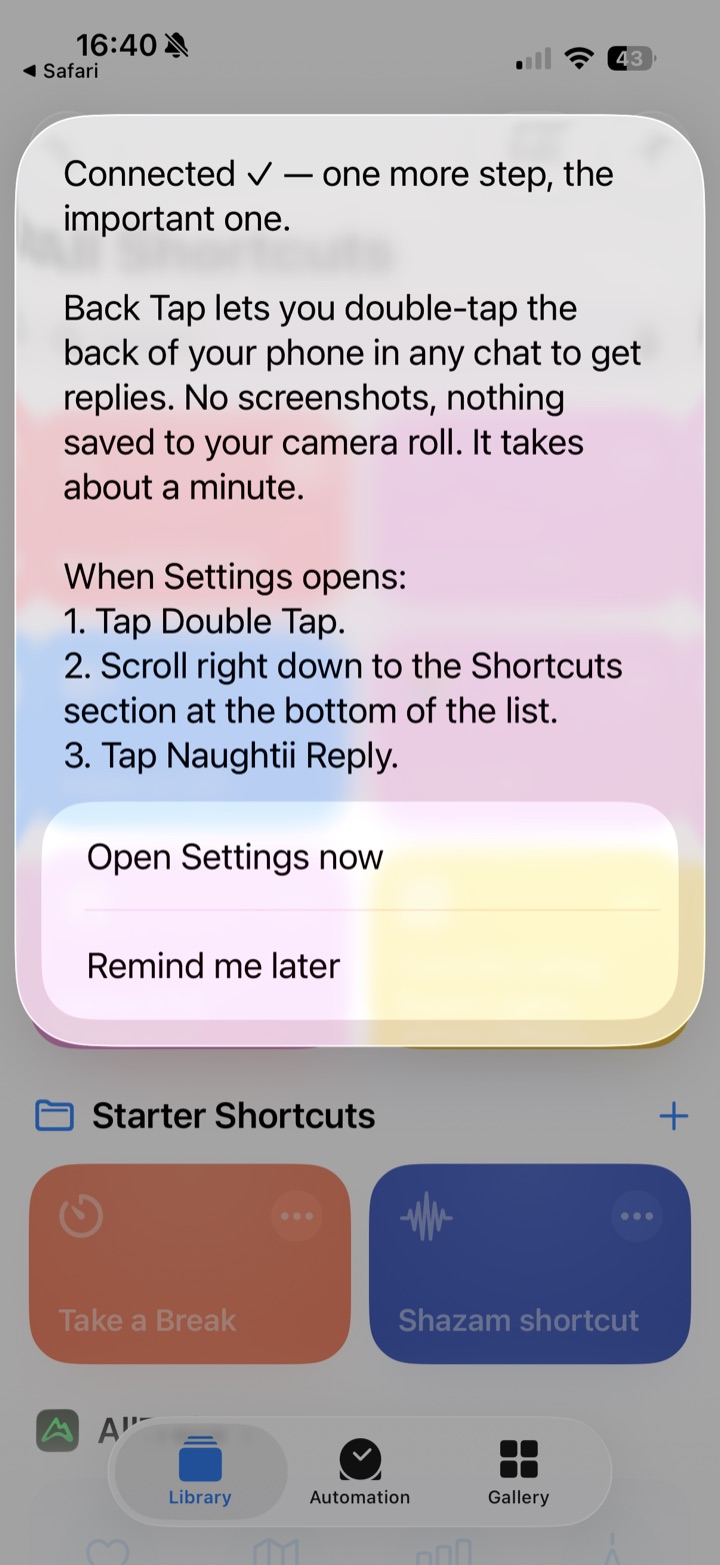
Settings opens straight at Back Tap. Then:
- Tap Double Tap.
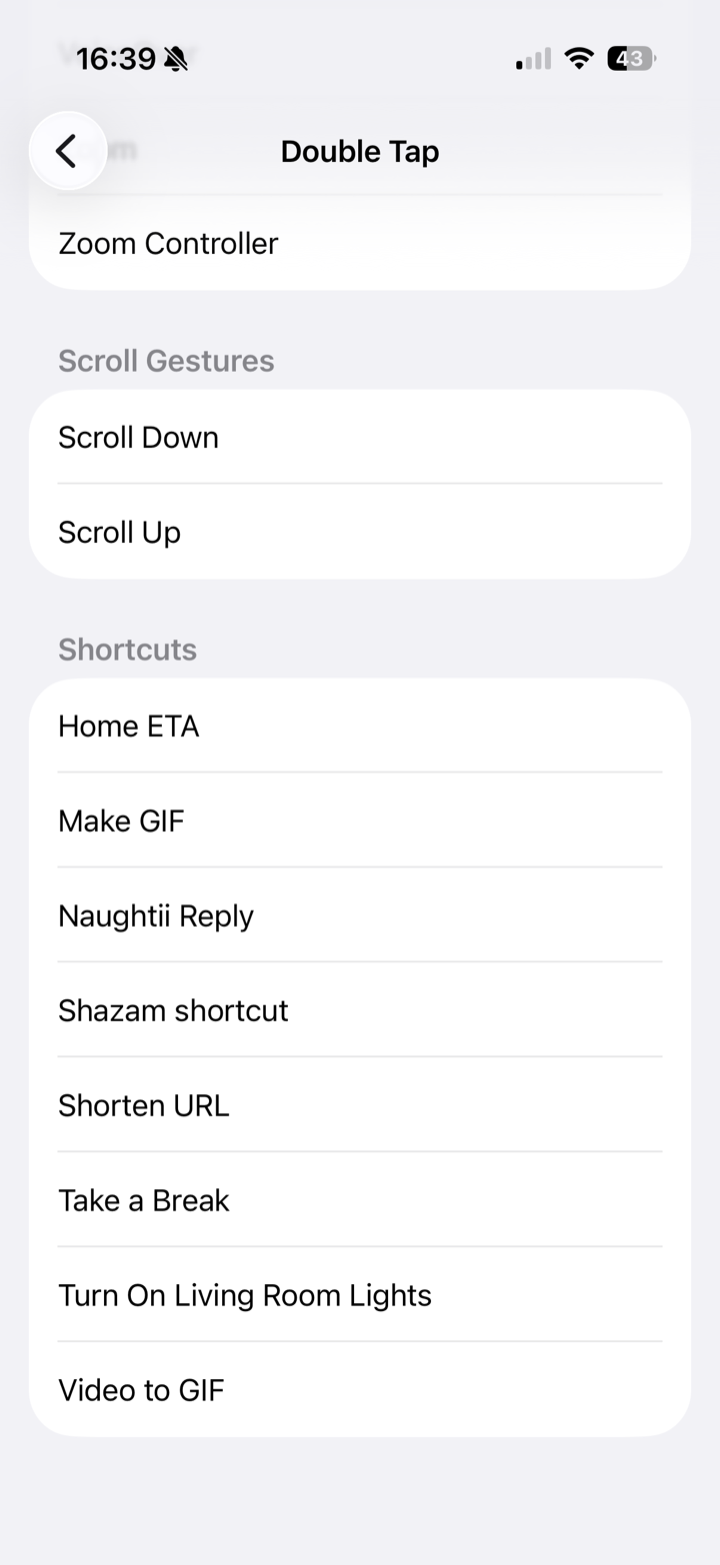
- Scroll right down to the Shortcuts section at the bottom of the list - it's a long way down, below all of Apple's built-in actions.
- Tap Naughtii Reply.
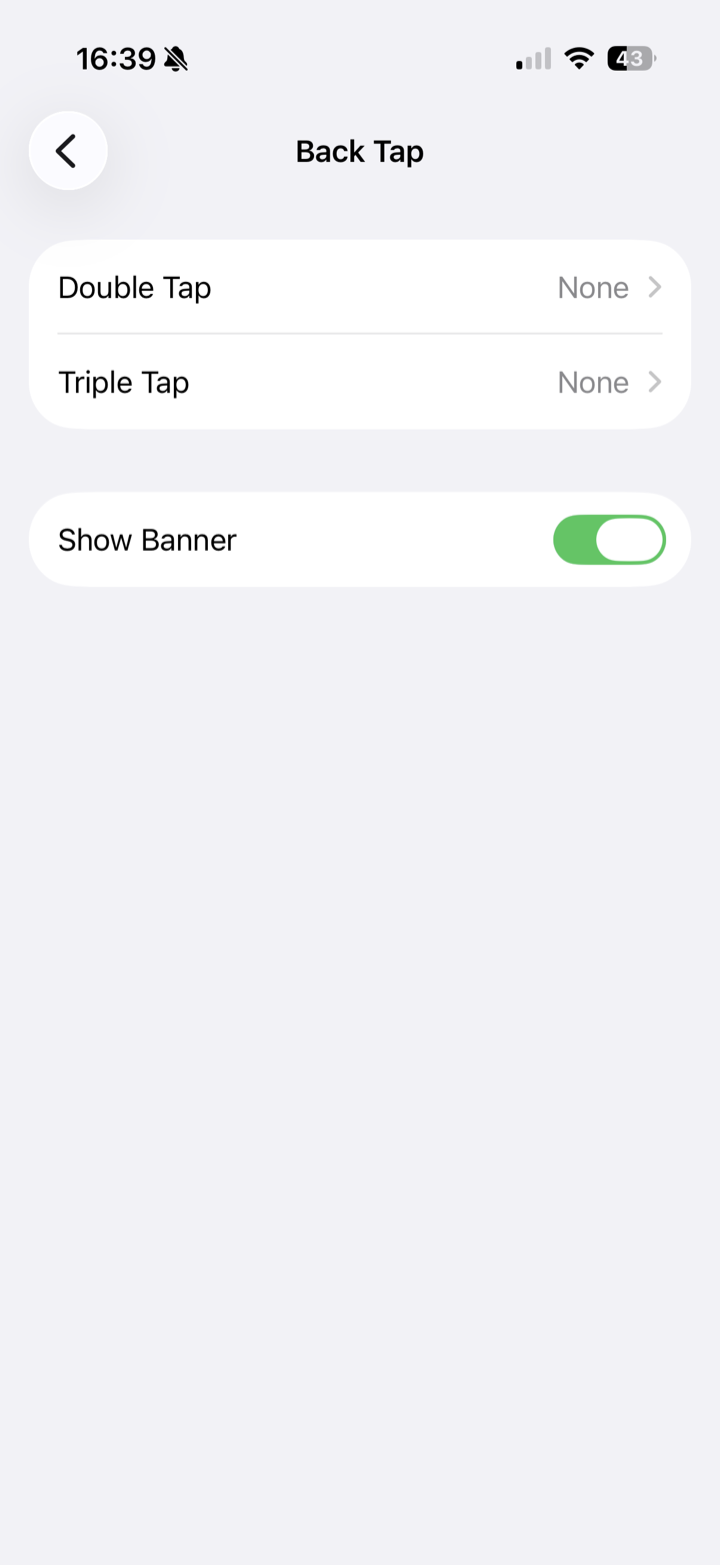
If Settings ever opens somewhere else, the path is Settings → Accessibility → Touch → Back Tap. On an iPhone with an Action Button, you can assign Naughtii Reply there instead (Settings → Action Button → Shortcut).
Using it: the double-tap
Open any fan's chat in OnlyFans and double-tap the back of your phone. Naughtii captures what's on screen and asks what the reply should do:
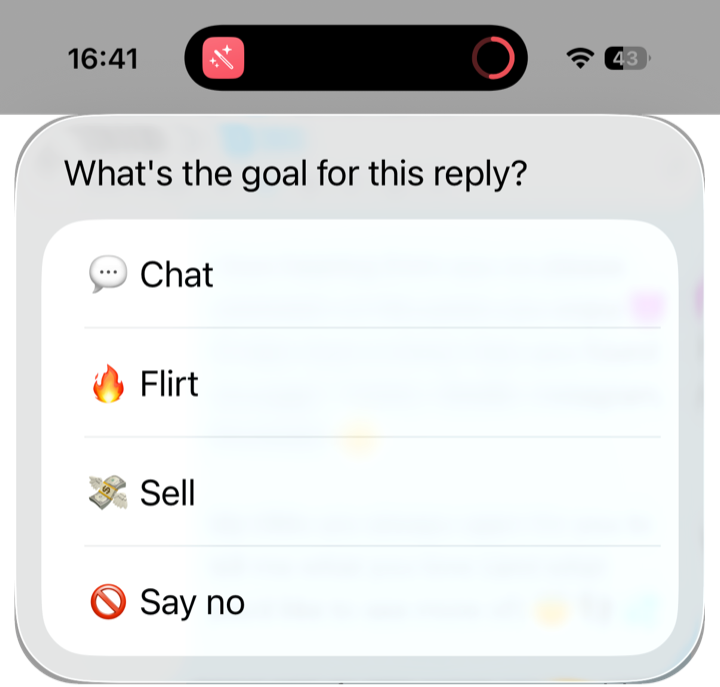
This choice is the lever that stops every reply turning into a pitch. Chat keeps the conversation alive with no selling. Flirt turns up the heat within your boundaries. Sell picks the best-fitting offer from your price menu and weaves it in. Say no declines warmly but firmly and redirects.
Three replies appear in about three seconds:
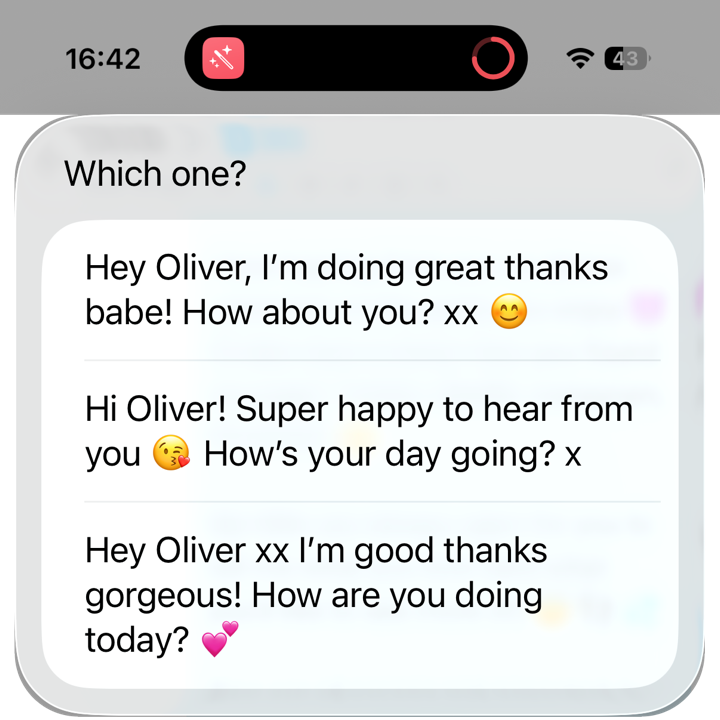
Tap the one you like - it's copied to your clipboard. Long-press the message box in the chat, paste, edit anything you want, and send.
The first time you ask for a reply, iOS will ask once more, saying Naughtii Reply wants to send "1 image and 1 text item". That list is accurate and complete: the screenshot of the chat, and your connection key. Tap Always Allow and it's done asking.
What leaves your phone - and what doesn't
Creators are right to ask what a gesture that "reads my screen" actually sends. Here's the whole list.
Leaves your phone: a reduced-size screenshot of the chat on your screen, with metadata removed, sent once so the AI can see who said what; it's used to draft the reply and not stored. And your connection key, which can draft replies and nothing else - no billing, no account changes - and which you can revoke from Studio → Install at any time.
Stays with you: your OnlyFans login, which is never asked for or seen. Your camera roll, because Back Tap saves nothing. And the send button - nothing is ever sent on your behalf.
The full detail is on the Trust & Safety page and in the Privacy Policy.
Can I use the Share menu instead?
Yes. Take a screenshot of the chat, tap Share, then Naughtii Reply. It works exactly the same way - but the screenshot stays in your camera roll until you delete it, which is why Back Tap is the route we recommend. If you do use the Share menu, you can move Naughtii Reply into its first row: scroll to the bottom, tap Edit Actions, tap the green + next to Naughtii Reply, and drag it to the top of Favourites.
What about Android, or a laptop?
Naughtii on Android is coming soon - you can leave your email on the homepage to hear the day it lands. In the meantime, and whenever you're at a computer, Naughtii for Chrome does the same job inside your OnlyFans inbox, from the same profile, and pastes the reply into the message box for you. Replies from your phone and your laptop draw on the same monthly allowance; nothing is counted twice.
Three things to remember
- Back Tap is the whole product on iPhone. Set it up once; from then on it's a double-tap in any chat.
- Pick the goal on purpose. Chat when you're chatting, Sell when you mean it.
- You're always the sender. Naughtii drafts; you paste, edit and send.
Ready? Start your free month - the full Creator plan, no card needed - and you can be answering from your phone tonight.